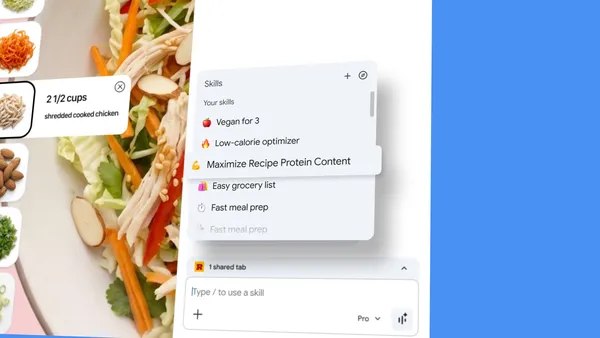

If you’ve been using Gemini in Chrome to ask questions or get help while browsing, you’ve probably run into the same annoyance I have: repeating the same prompt over and over. Want to check protein macros for a recipe? Type it. Switch tabs to another recipe? Type it again. It gets old fast.
Google’s answer is Skills, a new feature rolling out today in Chrome on desktop. It’s exactly what the name suggests—save your best prompts as reusable tools, then fire them off with a single click or a slash command. No more copy-paste, no more retyping.
How Skills Work
The core idea is simple. When you write a prompt in Gemini in Chrome that you know you’ll use again—like “convert this recipe to vegan” or “compare specs of these products across open tabs”—you can save it as a Skill directly from your chat history. Next time you need it, just type forward slash (/) or click the plus sign (+), pick your Skill, and it runs on whatever page you’re viewing. You can even select multiple tabs and run the Skill across all of them at once.
Early testers have already put Skills to work in ways that feel genuinely useful:
- Health & wellness: quickly calculating protein macros for any recipe without retyping
- Shopping: generating side-by-side spec comparisons across multiple product tabs
- Productivity: scanning lengthy documents for important info in one click
I’ve been playing with the macro calculator one, and it’s surprisingly handy. No more switching between a recipe page and a nutrition calculator—just hit the Skill and it does the math right there.
A Library of Ready-Made Skills
Not everyone wants to build their own from scratch. Google’s also launching a library of pre-written Skills for common tasks. Want to break down ingredients of a product you’re viewing? Or find the perfect gift by cross-referencing your budget with the recipient’s interests? There’s a Skill for that.
You can add any library Skill with one click, and if it’s close but not quite right, you can edit the prompt to fit your needs. That’s a smart touch—Google knows people will want to tweak things.
Privacy and Control
Skills inherit Chrome’s existing security model, which means they ask for confirmation before doing anything potentially sensitive—like adding an event to your calendar or sending an email. Google also mentions automated red-teaming and auto-updates, which is their way of saying they’re stress-testing these prompts for safety. I’d still be cautious about saving a Skill that automates anything with payment or personal data, but for everyday browsing, it feels reasonable.
The Practical Takeaway
Skills are rolling out to Gemini in Chrome on desktop starting today. Saved Skills sync across any signed-in Chrome desktop device, and you can manage them by typing / then clicking the compass icon. No mobile support yet, which is a bummer, but I’d expect that to come.
This isn’t a revolutionary feature—it’s a quality-of-life improvement that makes an existing tool less annoying to use. But sometimes that’s exactly what you need. If you’re already using Gemini in Chrome, Skills will save you time. If you’re not, this might be the nudge to give it a shot.
Comments (0)
Login Log in to comment.
Be the first to comment!